How to Use Advanced (Complex) Filters in Lead Insights
Advanced Filters allow you to Filter your lead data using logical operators such as AND, OR, and NOT. This enables you to create precise audience segments based on engagement, profile attributes, and campaign interactions.
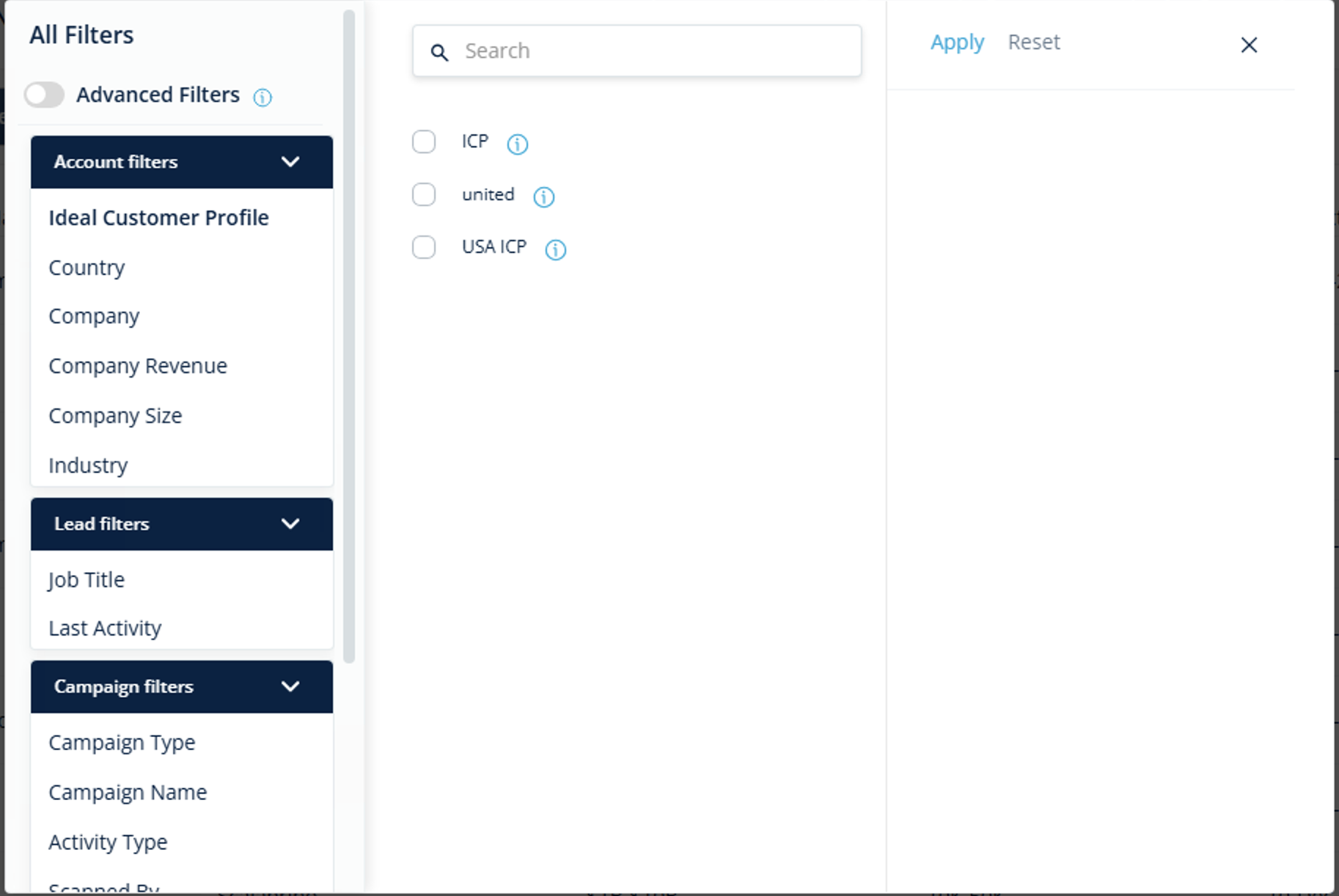
- Navigate to the Leads page and click on ‘All Filters’.
- Enable the ‘Advanced Filters’ toggle to start using complex filtering.
- This opens the advanced filtering interface where you can configure conditions.
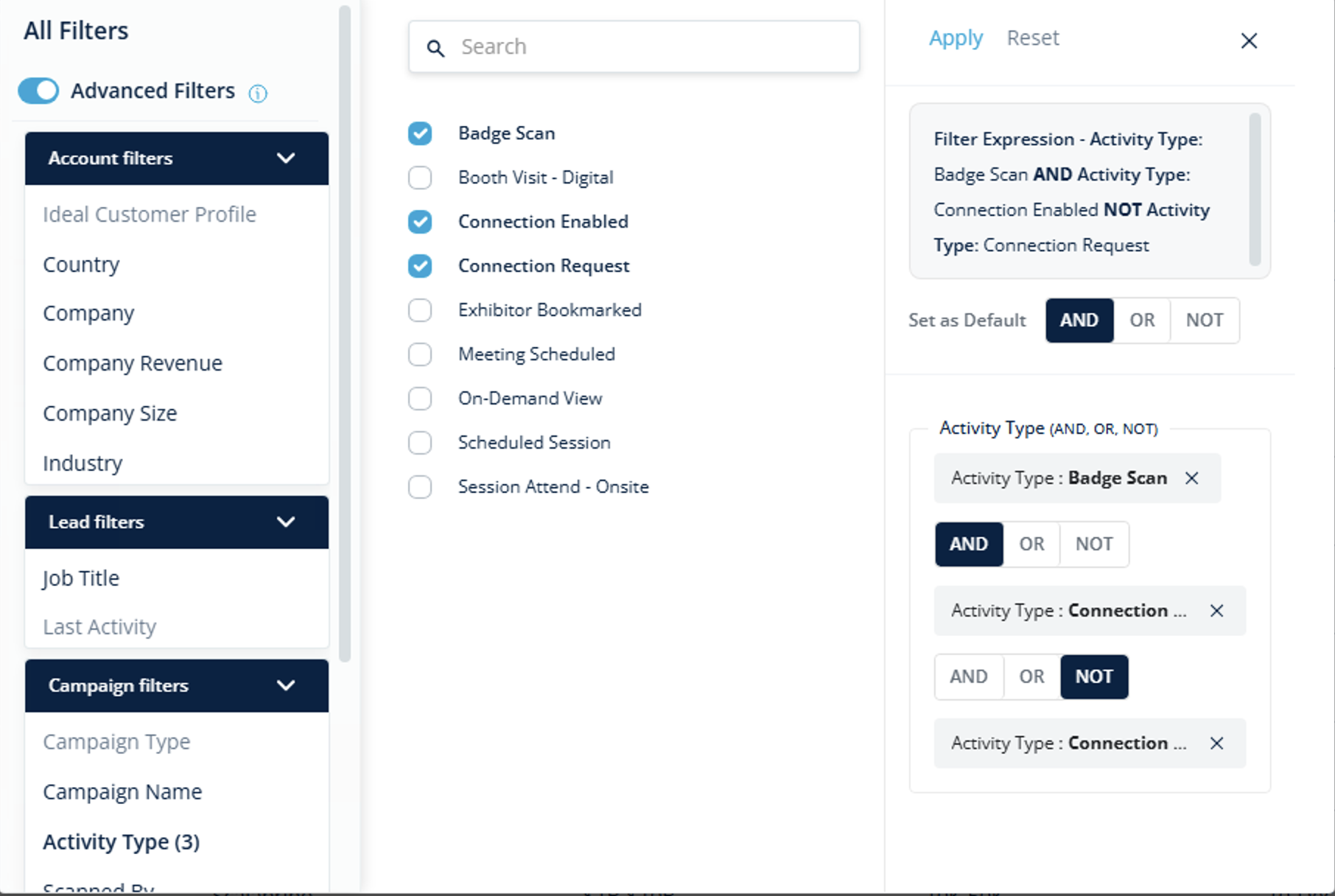
Scenario 1: Applying Filters for the Same Field, Multiple Value
Select Activity Type = Badge Scan and Connection Request using AND, and exclude Connection Enable using NOT. This will display users who had a badge scan and requested a meeting, but did not have a meeting scheduled.
You can also choose between ‘AND’, ‘OR’, or ‘NOT’ operators based on your filtering requirement to refine or broaden the results.
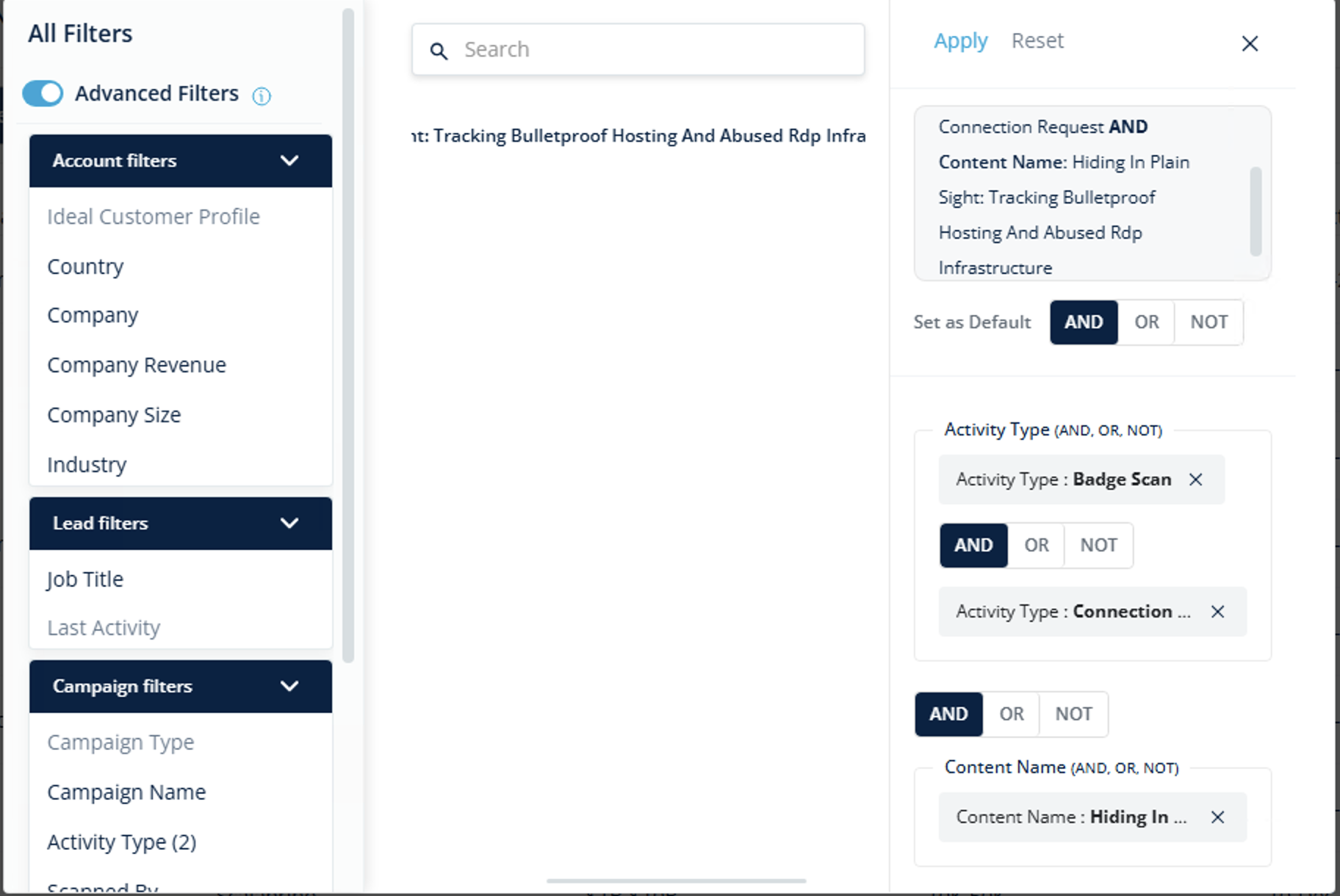
Scenario 2: Applying Multiple Conditions in the Same Category
Under Campaign Filters, select:
- Activity Type = Badge Scan
- Activity Type = Connection Request
- Content Name = Hiding In Plain Sight: Tracking Bulletproof Hosting And Abused Rdp Infrastructure
Use AND to combine them
You can also switch to the ‘OR’ operator if you want to broaden the results.
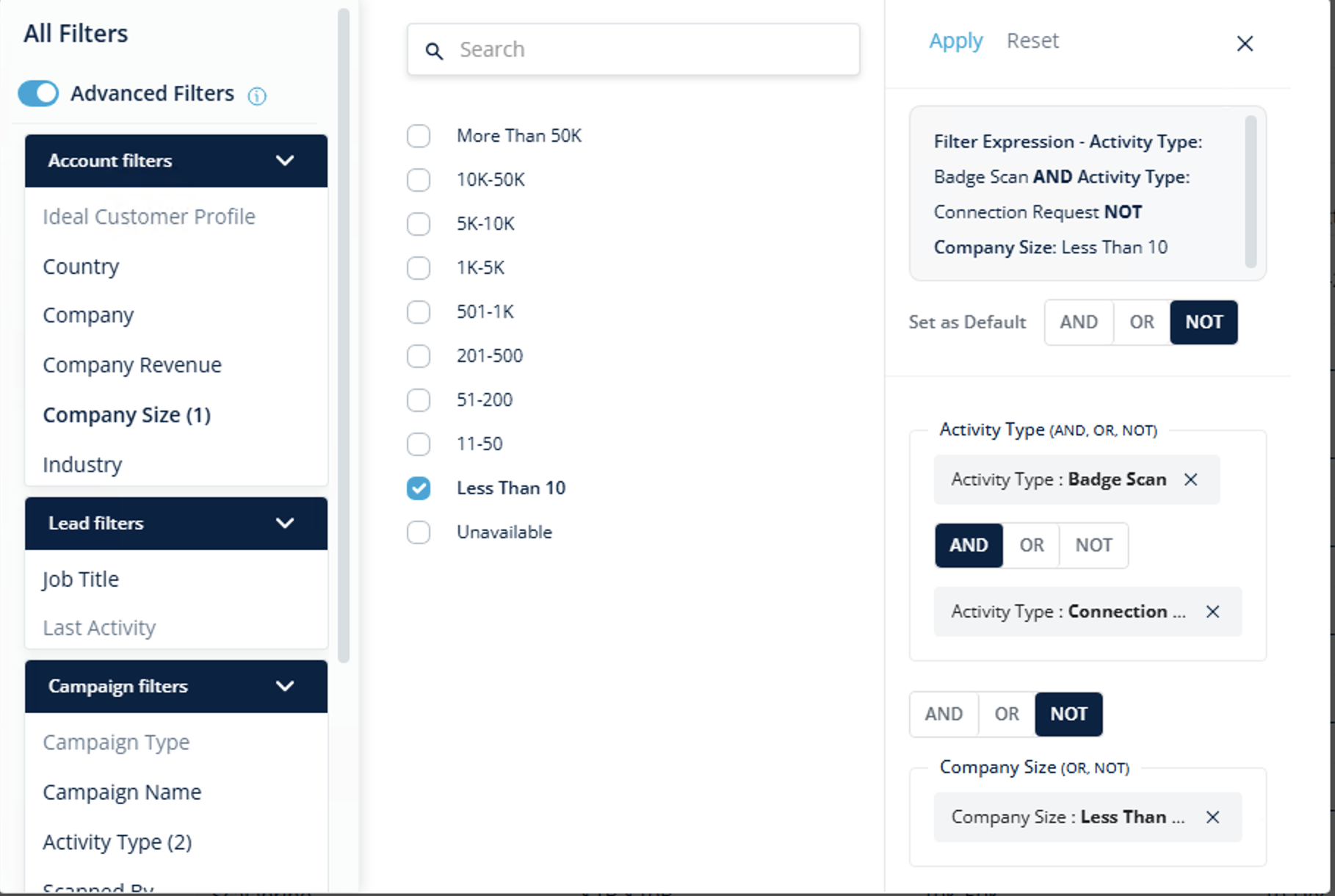
Scenario 3: Applying Filters Across Different Categories
Under Campaign Filters, select:
- Badge Scan
- connection Request (use AND)
Then, under Account Filters, exclude:
- Company Size = Less than 10 (use NOT)
This will show users who are highly engaged but remove those from very small companies. You can use OR if you want to include users who meet any of the selected conditions
Was this article helpful?
That’s Great!
Thank you for your feedback
Sorry! We couldn't be helpful
Thank you for your feedback
Feedback sent
We appreciate your effort and will try to fix the article